
CSS: Placing text over an inline image
CSS is a very powerful tool that works best when kept as simple as possible. Unfortunately there are a lot of WYSIWYG applications and other HTML editors that produce CSS that is anything but simple.
A common request is to be able to display HTML text over an image that's already embedded on the page. There are a number of valid solutions using either tables or CSS.
Using a TABLE to overlay text on an image
The HTML solution has been possible since Netscape 3 and is fairly simple to implement, but not so flexible as more recent options.
<table width="(width)" height="(height)" background="(path to image)" cellpadding="5" cellspacing="0">
<tr>
<td valign="bottom">
<p><b><font color="#ffffff">
(text to appear over the image goes here)
</font></b></p>
</td>
</tr>
</table>
|
The HTML approach is to set up a TABLE with a background image. Then a single TD is used to display the text. The width and height of the TABLE are set to match that of the background image. This is a valid approach according to HTML standards, but not so good if you look at the resulting code. Why should you have to use a TABLE to handle this kind of layout? Perhaps CSS has a cleaner solution... |
Many years ago this was a novel approach, but these days it's very much discouraged.
Using CSS to overlay text on an image
Indeed there is a simpler, more flexible solution. Instead of a TABLE we use a DIV and CSS positional attributes to place futher text and images with relation to that DIV.
<div style="position: relative; background: url(path to image); width: (width)px; height: (height)px;">

<div style="position: absolute; bottom: 0; left: 0.5em; width: 400px; font-weight: bold; color: #fff;">
<p>(text to appear at the bottom left of the image)</p>
</div>

<p style="position: absolute; top: 1em; right: 2em; width: 120px; padding: 4px; background-color: #fff; font-weight: bold; font-size: 11px;">
(text to appear at the top right of the image)
</p>

</div>
As you can see, we are able to place any number of sub-elements within the surrounding div. In this case a div containing paragraphs with text (bottom left), and a paragraph by itself (top right).
The CSS approach is to use one DIV to define the area where the background image appears. This DIV has it's position attribute set to relative in order that the items it contains can be properly placed.
This is done by setting the position attribute of contained items to absolute and placing them by setting one or more of the positional attributes: top, right, bottom and left.
This block has been positioned at the top, right
The position attribute may seem complicated at first, but it's the key to implementing complicated layouts without excessive amounts of code. Remember that you need to have a container element with position: relative in order to place inner elements using position: absolute.
Without a container element all positioning will be in relation to the viewport (the corner of the screen). This in combination with position: fixed can create elements that stay in one corner of the screen and don't move when the page scrolls, but only in browsers other than Explorer. On this site you might see a [top] link doing just that if you're using a compatible browser.
Separating styles from content
Normally you will want to have your CSS in a separate file or at least it's own style block rather than inline with the HTML. This can be easily achieved by assigning CSS classes to the various container elements:
<style>

  .outer {
    position: relative;
    background: url(/images/css_textoverimage.jpg);
    width: 500px;
    height: 309px;
  }
  .bottomleft {
    position: absolute;
    bottom: 0;
    left: 0.5em;
    width: 400px;
    font-weight: bold;
    color: #fff;
  }
 .topright {
    position: absolute;
    top: 1em;
    right: 2em;
    width: 120px;
    padding: 4px;
    background-color: #fff;
    font-weight: bold;
    font-size: 11px;
  }

</style>

<div class="outer">
<div class="bottomleft">
<p>(text to appear at the bottom left of the image)</p>
</div>
<p class="topright">(text to appear at the top right of the image)</p>
</div>
The result is idential to the previous example, but now much easier to maintain as the HTML and CSS can be edited independently.
Showing text over an image on hover
Sometimes you only want text to appear when the mouse is over the image or the image has focus. One nice way of achieving this is to wrap the image in a link and use the title attribute to store the caption.
In the example below you can see this in action. We've set the outer link to position: relative and used its title attribute attr(title) to create some generated content and place it over the image.
The generated content is initially hidden opacity: 0 and then exposed using the hover/focus state and a CSS animation fader.
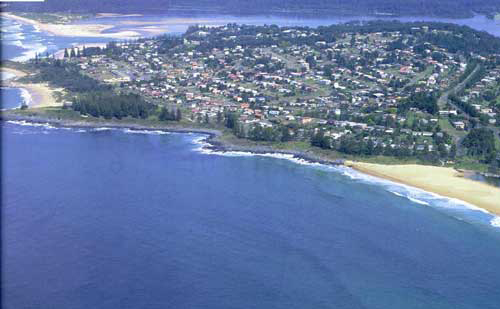
The slow fade may still not work in some browsers as they don't support transition effects on generated content. It does fade in in Firefox 23.0.
The attr method in CSS is extremely useful as it allows you to embed data into HTML elements for use in generated content. In this case we're using the title attribute, but you can also create your own custom attributes. In that case the custom is to name them data-* (e.g. data-hovertext).
Source code for this example:
<style>

  a.hovertext {
    position: relative;
    width: 500px;
    text-decoration: none !important;
    text-align: center;
  }
  a.hovertext::after {
    content: attr(title);
    position: absolute;
    left: 0;
    bottom: 0;
    padding: 0.5em 20px;
    width: 460px;
    background: rgba(0,0,0,0.8);
    text-decoration: none !important;
    color: #fff;
    opacity: 0;
    -webkit-transition: 0.5s;
    -moz-transition: 0.5s;
    -o-transition: 0.5s;
    -ms-transition: 0.5s;
    transition: 0.5s;
  }
  a.hovertext:hover::after,
  a.hovertext:focus::after {
    opacity: 1.0;
  }

</style>

<p><a class="hovertext" href="#" title="The title attribute of the link appears over the image on hover"><img src="/images/css_textoverimage.jpg" width="500" height="309" border="0" alt=""></a></p>
You could also place HTML text over the images as in the earlier examples and have it show/hide the same way, but that's not nearly as cool.
grant 21 June, 2018
This was great except for the extra tooltip that would pop up.
Yw 17 May, 2018
Wow man you save my day, I had try many different way to achieve the static text on image with responsive web size until I google and find your tutorial. Your first method work for me and still work in 2018 year! I'm doing the email conversion BTW
Regi 4 December, 2014
For HTML5, to fill the whole page without repeat the image, also can be:
<img style="position: relative; width: 100%; height: 100%; top: 50px" src="images/1.jpg">
"TEST"<br>
"ir wewe w wr wr ere re r erer"<br>
</p>
Tony 3 December, 2014
How to make text resizble based on the size of images?
wirausaha 22 September, 2013
wow..
thanks for the tutorial and especially for the sample source code given, been around looking for this and finally found the most matched script here for what I want to adopting it in my website...
You save my day, thanks
Marek 20 July, 2013
Nice..
But actually I'm looking for a CSS code which will fade in few images placed in a table when hovered on (each image individually when the mosue is hovering on it), and then show a text over that image (different text for each image). Could you post it, please.
Thanks!
I've added an example of this now.
roger 16 July, 2013
thanks. was looking for this. Does anyone know if replacing the <div> with a <a> would change anything? I need the photo to be clickable.
If you put a link on the background then only the portions not obscured by positioned text will be clickable. A better approach is to keep the image as a background and place a clickable transparent image over the entire area - with a higher z-index than other positioned elements.
florists 5 June, 2013
perfect, used it to put a watermark type text on my images, you can see the result by clicking my name.
Kevin M 4 August, 2012
Worked fine for me. It's important for my site to be visible by GoogleBot/web crawlers so I don't want to embed my text into the image and hide it from them. However I want the site to be aesthetically pleasing.
Thanks for the article.
Dana Pertermann 13 March, 2012
The code was exactly what I was looking for, but it doesn't work. What is the (path) to my background image? The code says url (path to image). Should I write in the img src command between the paraentheses?
joanne knight 9 November, 2011
When the page loads the text over the graphic shows, but as the page renders, the text disappears. What to do? (i'm working with the html code)
Peter McCartney 21 April, 2011
Back again, sorry! I finally posted the article containing the background image. With your help it looks just fantastic. Still doesn't show in feeds, except for feedburner. Odd that! Anyway, thank you for your site and your help.
Peter McCartney 17 April, 2011
I've replicated part two of this informative article and all works well in my test blog.
Problem: The map is not visible in the atom and rss feed. Any ideas please?
Most likely either your blog is removing style attributes from the RSS feed, or the program you're using to view the feed doesn't support background images. Without seeing your RSS feed it's hard to tell.
Peter McCartney 18 March, 2011
Worked it out. I added: margin: 0px auto; to the top line of code. Thanks again
Wes 10 February, 2011
z-index can also be used for overlays
Peter McCartney 24 March, 2010
Hi and thank you for your informative article. I have been looking for this for sometime.
Q. How do I center the image?
I normally use: img style="display: block; float: none; margin-left: auto; margin-right: auto" for this.
Martyn 8 March, 2010
*Note my website is not up yet*
This guide is the best, honestly I've bean looking for a decent CSS guide of this. Well done!