
JavaScript: Password Validation using regular expressions and HTML5
A lot of websites now require registration, meaning that users need to be assigned a username and password. Here are some simple steps to make the process more secure.
If the purpose of registration is to confirm that the person exists, and that they have supplied a valid email address, then as part of the registration process you a should email them either: a random password; or a confirmation token. Do not let them choose their own password and use it immediately without verifying that they exist.
The code presented below would then be used for letting the user change their password.
Guidelines for Secure Password Input
Use the "password" input type
Instead of <input type="text">, use <input type="password"> as this lets the browser (and the user) know that the contents of that field need to be secured.
The password won't appear on the screen as you type and most browsers also won't retain or remember values entered in password fields as they do with other form elements.
In some cases, such as on mobile devices, displaying the password may improve usability without compromising security. After all it's only the browser display being obfuscated and not the data transfer.
Confirm password input
Because the password input type obscures the text typed, you should let the user confirm that they haven't made a mistake. The simplest way to do this is to have the password entered twice, and then check that they are identical.
Another method is to display what they've entered as part of a 'confirmation page'. The problem here is that you're making the password visible in the browser, browser cache, proxy, etc. For security a password should never be displayed in HTML or sent by email.
Enforce 'strong' passwords
If you're concerned about security you should have some policy on what constitutes a valid password. Some common restrictions are:
- at least n characters
- combination of upper- and lower-case characters*
- one or more digits*
- not related to other user data (name, address, username, ...)
- not a dictionary word
Some of these requirements have been shown to be counterproductive - leading to endless passwords of the form "Amanda1969" and should now be avoided.
Leaving the last requirement for now, as it requires a server-side script, let's see what's possible using just client-side HTML and JavaScript.
Server security
While having a strong password is a good first step, it needs to be backed up by additional measures on the server that prevent brute-force attacks. One popular approach is to install Fail2Ban to monitor log files and lock out repeat offendors. Of course that only works if your login system reports failed login attempts to a system log file. Otherwise your application needs to provide this function.
Passwords need to be stored as a hash in your database and any backups should also be encrypted.
Basic Demonstration
The form below has three input fields: username, pwd1 and pwd2. When the form is submitted the checkForm script parses the input values and returns either true or false. If a false value is returned then the form submission is cancelled.
This code will work for browsers as far back as Netscape 4 (circa 1997).
The code behind the form is as follows. If you're not sure how to place this on your page, you might need to read the preceding article on Form Validation, or view the HTML source of this page.
<script>

  function checkForm(form)
  {
    if(form.username.value == "") {
      alert("Error: Username cannot be blank!");
      form.username.focus();
      return false;
    }
    re = /^\w+$/;
    if(!re.test(form.username.value)) {
      alert("Error: Username must contain only letters, numbers and underscores!");
      form.username.focus();
      return false;
    }

    if(form.pwd1.value != "" && form.pwd1.value == form.pwd2.value) {
      if(form.pwd1.value.length < 6) {
        alert("Error: Password must contain at least six characters!");
        form.pwd1.focus();
        return false;
      }
      if(form.pwd1.value == form.username.value) {
        alert("Error: Password must be different from Username!");
        form.pwd1.focus();
        return false;
      }
      re = /[0-9]/;
      if(!re.test(form.pwd1.value)) {
        alert("Error: password must contain at least one number (0-9)!");
        form.pwd1.focus();
        return false;
      }
      re = /[a-z]/;
      if(!re.test(form.pwd1.value)) {
        alert("Error: password must contain at least one lowercase letter (a-z)!");
        form.pwd1.focus();
        return false;
      }
      re = /[A-Z]/;
      if(!re.test(form.pwd1.value)) {
        alert("Error: password must contain at least one uppercase letter (A-Z)!");
        form.pwd1.focus();
        return false;
      }
    } else {
      alert("Error: Please check that you've entered and confirmed your password!");
      form.pwd1.focus();
      return false;
    }

    alert("You entered a valid password: " + form.pwd1.value);
    return true;
  }

</script>

<form ... onsubmit="return checkForm(this);">
  <p>Username: <input type="text" name="username"></p>
  <p>Password: <input type="password" name="pwd1"></p>
  <p>Confirm Password: <input type="password" name="pwd2"></p>
  <p><input type="submit"></p>
</form>
Remember that, as JavaScript isn't available in all browsers, you should also use server-side scripting to validate all data before recording it in a database or elsewhere. You might also want to spice up your forms using HTML5 Form Validation as we've done further down the page.
Advanced regular expressions
In most browsers - those that support JavaScript 1.5 (Firefox, Chrome, Safari, Opera 7 and Internet Explorer 8 and higher) - you can use more powerful regular expressions. Very old browsers may not recognise these patterns.
The code presented above is fine in that it checks everything that we wanted to check, but uses a lot of code to test each requirement individually and present different error messages. We're going to show you now how to apply the password tests using a single regular expression.
Consider the following:
<script>

  function checkPassword(str)
  {
    // at least one number, one lowercase and one uppercase letter
    // at least six characters
    var re = /(?=.*\d)(?=.*[a-z])(?=.*[A-Z]).{6,}/;
    return re.test(str);
  }

</script>
The type of expression used here is called a 'look-ahead' which tries to match the contained regexp against the 'future' part of the string.
Translation:
- matches a string of six or more characters;
- that contains at least one digit (\d is shorthand for [0-9]);
- at least one lowercase character; and
- at least one uppercase character:
| input | result of test | reason |
|---|---|---|
| abcABC | false | no numbers |
| abc123 | false | no uppercase characters |
| abAB1 | false | too short |
| abAB12 | true | - |
| Aa123456 | true | - |
If you are using a supported browser you can use the form below to test the regular expression:
If you want to restrict the password to ONLY letters and numbers (no spaces or other characters) then only a slight change is required. Instead of using . (the wildcard) we use \w:
<script>

  function checkPassword(str)
  {
    // at least one number, one lowercase and one uppercase letter
    // at least six characters that are letters, numbers or the underscore
    var re = /^(?=.*\d)(?=.*[a-z])(?=.*[A-Z])\w{6,}$/;
    return re.test(str);
  }

</script>
The \w is shorthand for 'any letter, number or the underscore character'.
Again, you can use the form below to test this regular expression:
Restricting which characters can be used is not good practice as punctuation, other symbols and spaces provide extra security.
Sample HTML and JavaScript code
You might implement this code on your own website as follows:
<script>

  function checkPassword(str)
  {
    var re = /^(?=.*\d)(?=.*[a-z])(?=.*[A-Z]).{6,}$/;
    return re.test(str);
  }

  function checkForm(form)
  {
    if(form.username.value == "") {
      alert("Error: Username cannot be blank!");
      form.username.focus();
      return false;
    }
    re = /^\w+$/;
    if(!re.test(form.username.value)) {
      alert("Error: Username must contain only letters, numbers and underscores!");
      form.username.focus();
      return false;
    }
    if(form.pwd1.value != "" && form.pwd1.value == form.pwd2.value) {
      if(!checkPassword(form.pwd1.value)) {
        alert("The password you have entered is not valid!");
        form.pwd1.focus();
        return false;
      }
    } else {
      alert("Error: Please check that you've entered and confirmed your password!");
      form.pwd1.focus();
      return false;
    }
    return true;
  }

</script>

<form method="POST" action="..." onsubmit="return checkForm(this);">
  <p>Username: <input type="text" name="username"></p>
  <p>Password: <input type="password" name="pwd1"></p>
  <p>Confirm Password: <input type="password" name="pwd2"></p>
  <p><input type="submit"></p>
</form>
As you can see, it's well worth learning the intricacies of regular expressions. They can be used not just in JavaScript, but also PHP, Perl, Java and many other languages. Some text editors (not just vi) also allow them when searching for or replacing text.
HTML5 Form Validation
We earlier mentioned HTML5 form validation. This is a new technique available in modern browsers and definitely the way of the future. A few simple form attributes can have the same effect as reams of JavaScript code libraries.
Here we have an enhanced version of the above code where we've added HTML5 required and pattern elements to apply regular expression tests within the form itself in supporting browsers. Helpfully the regular expression syntax is identical with just the /^ and $/ removed.
We've also added a tricky little onchange handler to the first password field which updates the pattern required by the second password field - in effect forcing them to be identical:
Here you can see a screen shot from Safari of the form being completed. The red/green markers have been implemented using CSS:
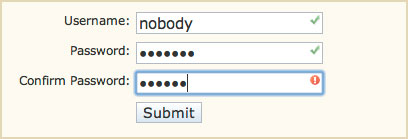
In this example it should be clear to the user that the form can only be submitted once all three green ticks appear. In any case browsers such as Firefox and Opera will enforce the HTML5 validation rules and present messages as shown here:
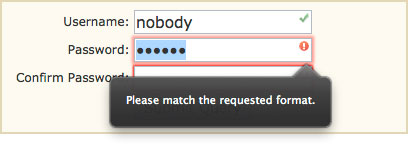
Presumably the browser messages will change according to the users language - something that would never be possible using only JavaScript.
All we have changed from the previous example is to add some extra attributes to the form input fields. The rest of the HTML and JavaScript remains unaltered:
...
<p>Username: <input type="text" required pattern="\w+" name="username"></p>
<p>Password: <input type="password" required pattern="(?=.*\d)(?=.*[a-z])(?=.*[A-Z]).{6,}" name="pwd1" onchange="form.pwd2.pattern = RegExp.escape(this.value);"></p>
<p>Confirm Password: <input type="password" required name="pwd2"></p>
...
You will need the RegExp.escape() polyfill code which can be found further down the page.
The best thing about HTML5 attributes is that they have no effect whatsoever on unsupported browsers, so older versions of Internet Explorer will act as if they are not present and just run the JavaScript validation as before.
At this stage both Firefox/Mozilla and Opera enforce HTML5 validation
attributes in the browser while Safari only lets you use them with
JavaScript or for CSS effects and now also Safari/WebKit.
Customised HTML5 browser alerts
As you can see from the screenshot above the alert message in Firefox for when the input doesn't match the pattern attribute is simply "Please match the requested format.". Not entirely helpful in this case where we have a number of different requirements.
Fortunately it is possible to customise this message using just a touch of JavaScript.
The only change between this and the previous example is that we've modified the onchange handler for the Password input and added one for Confirm Password:
<form method="POST" action="..." onsubmit="return checkForm(this);">
<fieldset>
  <legend>Change Password</legend>
  <p>Username: <input title="Enter your username" type="text" required pattern="\w+" name="username"></p>
  <p>Password: <input title="Password must contain at least 6 characters, including UPPER/lowercase and numbers" type="password" required pattern="(?=.*\d)(?=.*[a-z])(?=.*[A-Z]).{6,}" name="pwd1" onchange="
    this.setCustomValidity(this.validity.patternMismatch ? this.title : '');
    if(this.checkValidity()) {
      form.pwd2.pattern = RegExp.escape(this.value);
    }
"></p>
  <p>Confirm Password: <input title="Please enter the same Password as above" type="password" required pattern="(?=.*\d)(?=.*[a-z])(?=.*[A-Z]).{6,}" name="pwd2" onchange="
    this.setCustomValidity(this.validity.patternMismatch ? this.title : '');
"></p>
  <p><input type="submit" value="Save Changes"></p>
</fieldset>
</form>
We use the title attribute to store the validation messages as some browsers will automatically display that text in case of a missing value or pattern mismatch.
You will need the RegExp.escape() polyfill code which can be found further down the page.
When the Password input is changed we check its validity.patternMismatch flag to see whether it matches the pattern attribute. If it doesn't match we set a custom error message to appear when the form is submitted.
Whenever setCustomValidity() has been used to set a custom message the field in question will be regarded as invalid and prevent the form from submitting (at least in Firefox and Opera). To reverse this it needs to be set to blank, which we do when the input matches our regex rules.
The custom message we have set appears in Firefox as shown here:
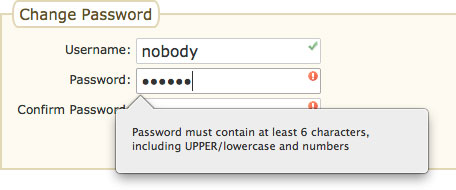
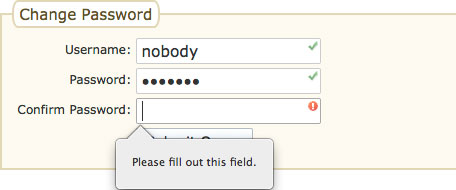
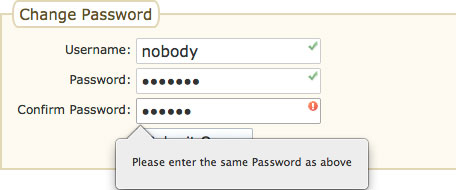
You can see from the code that we have applied a similar technique to the Confirm Password field so it will now display "Please enter the same Password as above" if there is a mismatch between the two fields. Basically what we've achieved here is to replicate our JavaScript validation script using HTML5.
Because we are only checking for patternMismatch we are not affecting the other default validation options - namely the required attribute - so submitting the form with blank fields will still display the generic "Please fill out this field" alert message. To override those errors you would need to check the validity.valueMissing flag.
For more details on the constraint validation API follow the links under References below.
Some browsers may show both the title text and the CustomValidity text in the same tooltip; just the CustomValidity message; or neither.
Separating form and function
You may have noticed the code in the above examples getting progressively messier with a mixture of HTML and inline JavaScript. A more professional approach is to totally separate the JavaScript code from the HTML markup.
This makes the code easier to maintain, especially when working in groups, as well as easier to read and understand. It does, however, lead to using more code as you can see below.
First, the HTML:
<form id="myForm" method="POST" action="...">
  <p>Username: <input id="field_username" title="Username must not be blank and contain only letters, numbers and underscores." type="text" required pattern="\w+" name="username"></p>
  <p>Password: <input id="field_pwd1" title="Password must contain at least 6 characters, including UPPER/lowercase and numbers." type="password" required pattern="(?=.*\d)(?=.*[a-z])(?=.*[A-Z]).{6,}" name="pwd1"></p>
  <p>Confirm Password: <input id="field_pwd2" title="Please enter the same Password as above." type="password" required pattern="(?=.*\d)(?=.*[a-z])(?=.*[A-Z]).{6,}" name="pwd2"></p>
  <p><input type="submit" value="Submit"></p>
</form>
and then the JavaScript:
<script>

  window.addEventListener("DOMContentLoaded", function(e) {

    // JavaScript form validation

    var checkPassword = function(str)
    {
      var re = /^(?=.*\d)(?=.*[a-z])(?=.*[A-Z]).{6,}$/;
      return re.test(str);
    };

    var checkForm = function(e)
    {
      if(this.username.value == "") {
        alert("Error: Username cannot be blank!");
        this.username.focus();
        e.preventDefault(); // equivalent to return false
        return;
      }
      re = /^\w+$/;
      if(!re.test(this.username.value)) {
        alert("Error: Username must contain only letters, numbers and underscores!");
        this.username.focus();
        e.preventDefault();
        return;
      }
      if(this.pwd1.value != "" && this.pwd1.value == this.pwd2.value) {
        if(!checkPassword(this.pwd1.value)) {
          alert("The password you have entered is not valid!");
          this.pwd1.focus();
          e.preventDefault();
          return;
        }
      } else {
        alert("Error: Please check that you've entered and confirmed your password!");
        this.pwd1.focus();
        e.preventDefault();
        return;
      }
      alert("Both username and password are VALID!");
    };

    var myForm = document.getElementById("myForm");
    myForm.addEventListener("submit", checkForm, true);

    // HTML5 form validation

    var supports_input_validity = function()
    {
      var i = document.createElement("input");
      return "setCustomValidity" in i;
    }

    if(supports_input_validity()) {
      var usernameInput = document.getElementById("field_username");
      usernameInput.setCustomValidity(usernameInput.title);

      var pwd1Input = document.getElementById("field_pwd1");
      pwd1Input.setCustomValidity(pwd1Input.title);

      var pwd2Input = document.getElementById("field_pwd2");

      // input key handlers

      usernameInput.addEventListener("keyup", function(e) {
        usernameInput.setCustomValidity(this.validity.patternMismatch ? usernameInput.title : "");
      }, false);

      pwd1Input.addEventListener("keyup", function(e) {
        this.setCustomValidity(this.validity.patternMismatch ? pwd1Input.title : "");
        if(this.checkValidity()) {
          pwd2Input.pattern = RegExp.escape(this.value);
          pwd2Input.setCustomValidity(pwd2Input.title);
        } else {
          pwd2Input.pattern = this.pattern;
          pwd2Input.setCustomValidity("");
        }
      }, false);

      pwd2Input.addEventListener("keyup", function(e) {
        this.setCustomValidity(this.validity.patternMismatch ? pwd2Input.title : "");
      }, false);

    }

  }, false);

</script>
The only hooks between the HTML and JavaScript are the id values of the form and input fields which you can see highlighted in the code.
This example will work in Internet Explorer 9 and higher. To get it working in IE8 requires a polyfill for the event handling functions. You can find code for this here.
You will also need the RegExp.escape() polyfill code which can be found further down the page.
The result is more or less identical to the previous example, with a few small improvements:
The main advantage is that the JavaScript can now be moved to its own file, or made part of a library, and be maintained separately from the HTML. Also no more global variables or functions.
To break it down, our form inputs are now being validated by:
- immediate visual feedback using CSS styles;
- inline prompts using custom HTML5 messages;
- JavaScript when the form is submitted; and
- (presumably) by a server-side script when the data is received.
RegExp.escape polyfill
This function comes from a proposed ECMAScript addition:
<script>

  // polyfill for RegExp.escape
  if(!RegExp.escape) {
    RegExp.escape = function(s) {
      return String(s).replace(/[\\^$*+?.()|[\]{}]/g, '\\$&');
    };
  }

</script>
Without this, if the contents of pwd1 contain a '*' or other special regular expression characters, the pattern for pwd2 can become invalid.
Conclusions
As you can see there's a lot involved in providing a rich user experience even for something as simple as changing a password. To summarise what we've covered:
- Always start by emailing new users a random password or unique activation link;
- Use the password input type to prevent passwords appearing on screen;
- Decide what constitutes a 'strong' password for your system and enforce it:
- server-side for spambots and users with JavaScript disabled;
- using JavaScript for browsers that don't support HTML5 validation;
- using HTML5 for a more user-friendly experience;
- Use CSS rules to highlight valid/invalid input for browsers that don't have alerts built-in; and
- Customise the HTML5 error messages where appropriate for improved usability;
Most of all don't feel you have to install massive JavaScript or jQuery libraries just to validate a form. By taking advantage of new browser standards as show in this article you can save time and resources and at the same time provide a better user experience.
HTML5 form validation is supported by Firefox, Chrome, Safari 10+,
Opera, and Internet Explorer 10+. In Safari you will see the CSS
styles, but the browser will not prevent the form from submitting or
display the inline error messages for invalid or missing
values.
References
- Association of controls and forms — HTML Standard
- Provide custom validation messages using setCustomValidity
- MDN: Core JavaScript Reference 1.5: RegExp
Related Articles - Form Validation
- HTML HTML5 Form Validation Examples
- HTML Validating a checkbox with HTML5
- JavaScript Preventing Double Form Submission
- JavaScript Password Validation using regular expressions and HTML5
- JavaScript Date and Time
- JavaScript Form Validation
- JavaScript Counting words in a text area
- JavaScript A simple modal feedback form with no plugins
- JavaScript Tweaking the HTML5 Color Input
- JavaScript Allowing the user to toggle password INPUT visibility
- JavaScript Credit Card numbers
- PHP Protecting forms using a CAPTCHA
- PHP Basic Form Handling in PHP
- PHP Measuring password strength
- PHP Creating a CAPTCHA with no Cookies
kyle 4 September, 2017
In section 7 of this page, when I put in "The1stquestion", for the password, and "The2ndquestion" for the confirm password, the confirm password section shows the wrong icon, like it should. However, my code, which can be found at codepen.io/anon/pen/BdbQXy which I took from this page, it shows it as correct as soon as I type "The2n" which shouldn't happen. I still get a pop-up error but it isn't as clean of a solution. Why does this happen?
Also, where can I get the green check and red warning button instead of the thumbs? Thank You!
Have you included the "RegExp.escape" function code? This was recently added to the script. Otherwise you will see a JavaScript error.
avi 21 August, 2017
you should prevent from:
onchange="form.pwd2.pattern = this.value;"
the pattern value is regex, so if the password contain '*' or '.' it broke your form
The code has been patched now using RegExp.escape().
jean delamotte 22 May, 2016
Is it possible to prevent javascript validation when brower accepts HTML5?
If they're checking against the same patterns then HTML5 will make sure all values are correct leaving nothing for the JavaScript validation to complain about.
You might also be able to use JavaScript to check for HTML5 validation support, but IMHO it's better to leave both in place, plus server-side validation.
Karan Deopura 23 April, 2016
Thanks for the Regular expression and javascript code.Really appreciate your work. Once again thanks a lot for the code
manu 16 August, 2014
please let me know what would be the code for -
1. only text (for L Name and F Name)
2. only number (for phone number)
3. phone number format (xxx) (443) xxx xxxx
Thanks in advance
Manu
shahroze 31 May, 2014
This is the most outstandingly awesome code i have been through in a while

Explained really well, and helped me a lot
Thankyou!
Diana 2 August, 2013
Hi.. 'm using your code for some of my projects.. (realy great! Congrats) and when i insert a pass for ex: Diana19 and retype on confirmation: Diana18 it says it was true... dont know why :X Can you help me with this?
Ty, Diana
PORTUGAL
I can't really help if you don't post the code
bhordupur 4 July, 2012
(?=.*\d)
I understood that it is about digit but what does ?=.* means.Could someone explain it.I am new in JavaScript
ferlucas 27 March, 2012
if i want that my password has between 6 and 10 chars, i should use /(?=.*\d)(?=.*[a-z])(?=.*[A-Z])\w{6,10}/
Exactly
Misbah Mehboob 29 April, 2011
not related to other user data (name, address, username, ...)
not a dictionary word
----------------
You didnt provide the above two features.
pk 30 December, 2010
good advice.
i just removed the password registration boxes.
will send random.
thank you very much.
George Inggs 18 May, 2010
GREAT code - this is a real time saver & combined with other validation techniques it has helped make our forms fairly bullet (read user) proof
Thanks heaps dude!!!
Gladson Jacob 17 September, 2008
Beautiful coding. But what to do, if I have to satisfy the following validation?
The password must be at least 8 characters long.
The password must contain characters from at least three of the following classes of Unicode:
Latin uppercase letters A, B, C, ... Z
Latin lowercase letters a, b, c, ... z
Westernized arabic numerals 0, 1, 2, ... 9
Non-alphanumeric symbols ? ! # ... etc
Frank Severino 8 August, 2008
Kinda weird but if I enter 11wwZX into the 2 validation boxes it fails in IE 6 and 7 but works fine with Firefox, what's up with that????
Short answer - some/all versions of Internet Explorer do not support advanced regular expressions.
Babina 19 May, 2008
I tried the last code by typing asdf123 but it says that its not valid. Why is it so?
You need to include a capital letter as well to match the regular expression.
Steve Thomas 25 July, 2007
This is some of the best code I have ever found on the web. Its great to see developers like you sharing this level of code. I will visit this site more often. Rock on!
Thanks Steve. When I started coding I relied a lot on other developers sharing code so I think it's only right to 'pay it forward'
Matthieu Turpault 31 January, 2007
I have tried the password "1h5gRgg" in the form used for password checking with complex regular expression. It seems that it is a valid password but the result is "Not Valid".
Strange, in my browsers that is identified as a valid password. Please note however that not all browsers support the more complex regular expressions involving look-ahead matching.